How We’re Using Zabbix 7.0 To Monitor For Windows Updates

Let Zabbix Stay On Top Of Windows Updates Monitoring For You

Anyone looking for an efficient way to monitor their Windows Servers for updates and receive automatic alerts for any pending updates? Look no further!

In just a few simple steps, you can configure your Zabbix sever to monitor for Windows updates and alert you whenever any updates are detected.

Step-by-Step Guide to Monitoring Windows Updates with Zabbix

Step 1. Download and Install the Zabbix Agent

First, download the correct Zabbix agent .msi from the official Zabbix download page, and install it on your Windows server.

Recommended download parameters:

Zabbix agent version: Agent 2 version that matches your Zabbix server version
OS distro: Windows
OS version: Any
Hardware: amd64 (for 64-bit OS)
Zabbix version: Choose the version you’re running
Encryption: OpenSSL
Packaging: MSI

Step 2. Add PowerShell Scripts for Checking Windows Updates

Next, download and place your custom PowerShell scripts (used to check for Windows updates) in the following directory: C:\Program Files\Zabbix Agent 2\zabbix-agent-scripts

Important Note
If you are running into execution policy errors, you will need to set your systems execution policy to ‘unrestricted’ with this command:

Set-ExecutionPolicy Unrestricted -Scope CurrentUser

Otherwise your Powershell scripts will fail to run from Zabbix server. Highly recommend testing the Powershell scripts on your machine directly before moving on to next steps.

Step 3. Modify the Zabbix Agent Configuration

Edit the zabbix_agent2.conf file, located in: C:\Program Files\Zabbix Agent 2\

IMPORTANT NOTE – If you are NOT running ‘Zabbix Agent 2‘, then your directory path will instead be ‘C:\Program Files\Zabbix Agent\’. Ensure your directory path is correct otherwise your Zabbix server will not be able to make contact with your Zabbix script(s).

Pro Tip – Use a text editor like Notepad++ to modify the file.

Increase the timeout: Find the following block and add the last line to increase the timeout to 30 seconds.

### Option: Timeout
# Specifies timeout for communications (in seconds).
#
# Mandatory: no
# Range: 1-30
# Default:
# Timeout=3
Timeout=30

(Optional) Allow system.run commands: Find the “# DenyKey=system.run[*]” code block and add this line to the bottom: AllowKey=system.run[*]

Add User Parameters: find the “# UserParameter=” code block and add these lines to the bottom:


UserParameter=DaysSinceLastUpdate,powershell.exe -NoProfile -ExecutionPolicy bypass -File "C:\Program Files\Zabbix Agent 2\zabbix-agent-scripts\DaysSinceLastUpdate.ps1"
UserParameter=CountUninstalledUpdates,powershell.exe -NoProfile -ExecutionPolicy bypass -File "C:\Program Files\Zabbix Agent 2\zabbix-agent-scripts\CountUninstalledUpdates.ps1"


Restart Zabbix service on the windows server
Windows flag key + R on your keyboard to bring up Run then; services.msc>find ‘zabbix agent 2’ service>right click, restart

Step 4. Increase Timeout on Zabbix Server (if not already done)

If you haven’t already increased the timeout on your Zabbix server, do so by editing the zabbix_server.conf file: sudo vim /etc/zabbix/zabbix_server.conf

Look for the Timeout block and update it accordingly. After making changes, restart the Zabbix server: sudo systemctl restart zabbix-server

5. Create a New Item For Your Host In Zabbix Frontend
(note – if you haven’t created your host in Zabbix frontend yet, do so and then circle back to this step)

Navigate to the Items section for your host in Zabbix, and create a new item with the following parameters:
Name: Count Uninstalled Windows Updates
Type: Zabbix agent
Key: CountUninstalledUpdates
Type Of Information: Numeric (unsigned)
Host Interface: (Enter your host’s IP)
Update Interval: 1d
Increase item timeout to 30 seconds

Leave the rest of the parameters as default, and click Add to save the item.

6. Create a Trigger In Zabbix Frontend

Now, create a trigger to alert you when updates are available. In the Triggers section for your host, click Create Trigger with the following details:
Name: Windows Updates Available
Severity: High
Expression: max(/<hostname>/CountUninstalledUpdates,#1)>0
Note: be sure to replace ‘<hostname>’ with the actual hostname of your windows server

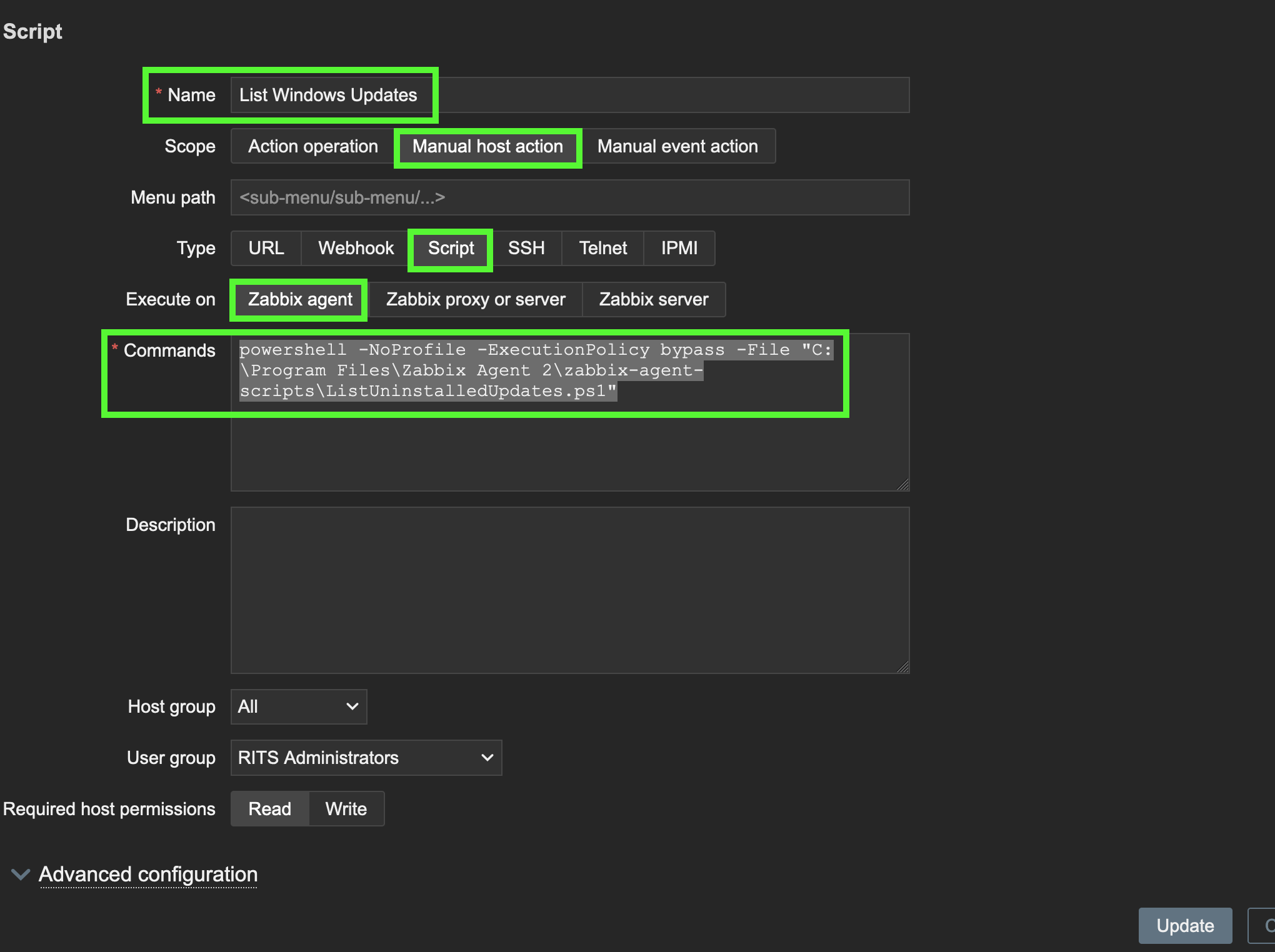
7. Add custom script to Zabbix frontend
This will give you the ability to query your Windows Server updates straight from Zabbix

– Navigate to the scripts section of your Zabbbix fronend. If you’re in Zabbix v7, it can be found on the left side column tool bar under alerts>scripts>create script

Here is the command:

powershell -NoProfile -ExecutionPolicy bypass -File "C:\Program Files\Zabbix Agent 2\zabbix-agent-scripts\ListUninstalledUpdates.ps1"

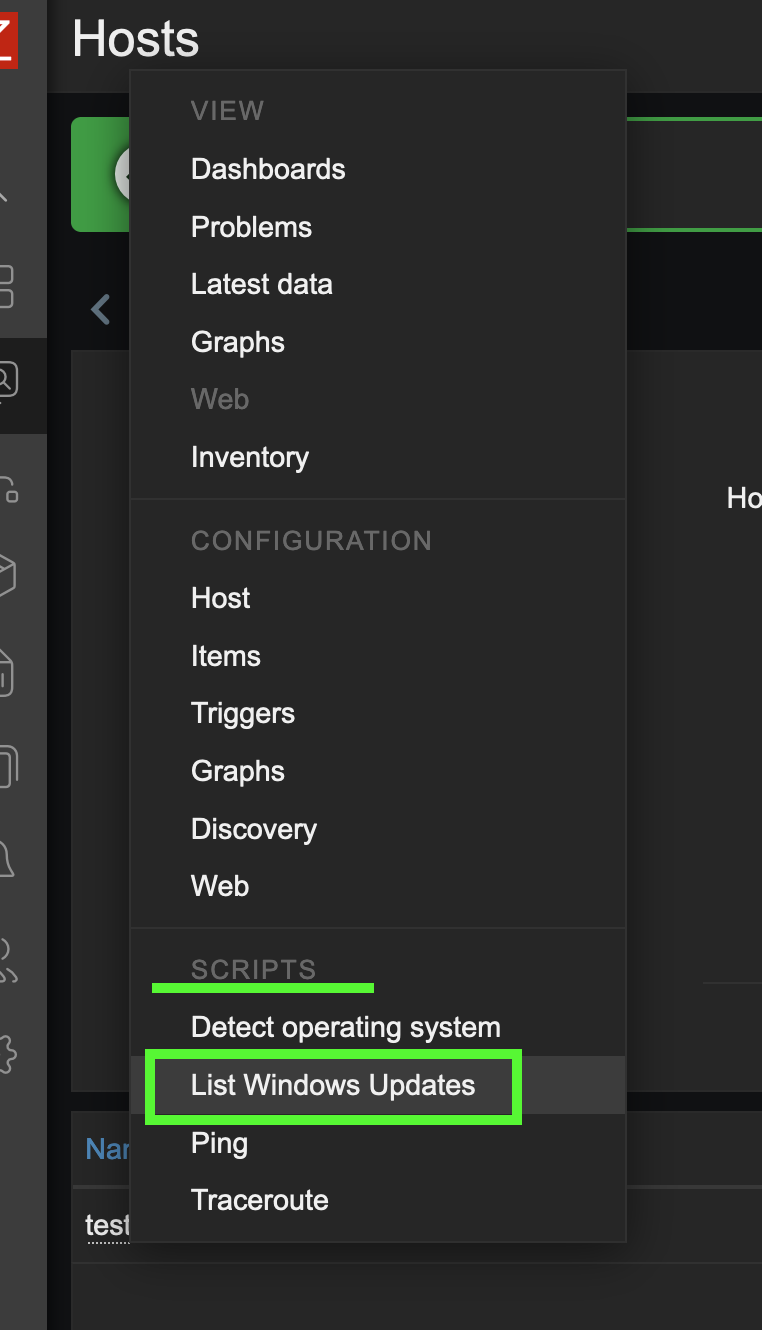
If configured correctly, you can now query your windows server for Microsoft updates straight from your Zabbix frontend by going to monitoring>hosts>left click on your windows server host and under scripts, select ‘List Windows Updates’

#Zabbix, #WindowsUpdates, #ZabbixMonitoring, #ITAutomation, #SystemAdministration, #WindowsServer, #PowerShellScripts, #ZabbixAgent, #ServerMonitoring, #ITInfrastructure, #ZabbixConfiguration, #ZabbixTutorial, #NetworkMonitoring, #PatchManagement, #ITSecurity, #HowToMonitorWindowsUpdatesWithZabbix7

Spiceworks Desktop 7.5 Deprecated

Spiceworks Desktop 7.5: Bringing the Spice Back with a User Management Fix

Ah, Spiceworks Desktop 7.5. Once a beloved, on-prem IT ticketing system, now just a ghost of its former self. It was officially deprecated in 2022 as the company shifted focus to their cloud offerings. 2022 though? Why are we just talking about it now?

Well, here’s the thing – the deprecation may have been announced in 2022, but it wasn’t a clean cut. They seemed to slowly phase things out, with features gradually breaking over time. And we’ve just stumbled upon one of the most crippling issues for any helpdesk system: the inability to create or manage users. Yes, you read that right.

Now, imagine trying to run a ticketing system where you can’t add users! Major yikes. Could this be part of a not-so-subtle push by Spiceworks to nudge (or shove) users towards their cloud platform? Hmm… the plot thickens.

But fear not, fellow IT warriors! We’re here to help you work around this by manually managing users directly in your Spiceworks database. Grab your digital wrench, and let’s dive into the fix.

What You’ll Need:

  • DB Browser for SQLite – This handy tool will let you dive into and manage your Spiceworks SQL database.
  • Backup your Spiceworks Database – Seriously, don’t skip this step. You’ll want to backup the spiceworks_prod.db file, which is usually found here: C:\Program Files (x86)\Spiceworks\db

⚠️ WARNING: Tinkering with your database is risky business. One wrong move and your system could be toast. Proceed at your own risk!


#SpiceworksDesktop7_5 #SpiceworksHelpdesk #ITTicketingSystem #DeprecatedSoftware #SpiceworksCloudMigration #SpiceworksDatabaseFix #DBBrowserForSQLite #ITTroubleshooting #UserManagementFix #Spiceworks2022Deprecation #HelpdeskSystemWorkaround #OnPremiseTicketingSystem #SQLDatabaseManagement #SpiceworksTroubleshooting #SpiceworksTutorial #SpiceworksAlternative #ITSupportTools #ITSystemDeprecation #FixSpiceworksUserManagement #ITBlogTutorial

How To Install Wazuh Agents with PDQ Deploy

If you have anymore than 20 computers you want to install Wazuh Agents on, you’re really going to need a deployment package. Who wants to touch every computer one by one to install an agent? Not me. It’s time to exercise some of those Sys Admin skillz you stored away in the attic and dust off those cob webs.

PDQ Deploy to the rescue. PDQ deploy is an invaluable IT tool, one of the Sys Admins best friends in fact. Today we are going to leverage some of the power of PDQ Deploy to do all the leg work for us with installing Wazuh agents to large amounts of networked windows computers.

Let’s Get The Pre-Reqs Out Of The Way

All your Windows endpoints will need a bit of prep in order for a successful PDQ Deployment ->

– Enable file and printer sharing

– Enable Local Token Filter (Run cmd as admin and copy paste the following cmd) ->

reg add “HKLM\SOFTWARE\Microsoft\Windows\CurrentVersion\Policies\System” /v “LocalAccountTokenFilterPolicy” /t REG_DWORD /d 1 /f

What is this local token filter thinga ma jig all about?

When you enable LocalAccountTokenFilterPolicy, you’re essentially allowing full administrative rights to administrators when they access the computer remotely via network connections such as Remote Desktop or network shares. Without this enabled, UAC strips administrative privileges from the administrator’s credentials when they are used remotely, which can lead to authentication problems, especially in scenarios where administrative access is required.

As a best security practice, we do recommend disabling LocalAccountTokenFilterPolicy once you’re done with your deployments.

To disable, simply rerun nearly the same command but just change the 1 to a 0 ->

reg add “HKLM\SOFTWARE\Microsoft\Windows\CurrentVersion\Policies\System” /v “LocalAccountTokenFilterPolicy” /t REG_DWORD /d 0 /f

While we’re on the topic of best security practices, you may as well plan to revoke admin rights of your deployment user too when you’re done with your deployment job.

Now Back To The Remaining Pre-reqs ->

– Create a local deployment user account that can be used for authentication with PDQ (this user account must have local admin privileges)

– Create a share on your deployment server that will host the Wazuh agent .msi file

– Download the Wazuh agent .msi file and stick it in your share

– Download and install PDQ Deploy 14 day trial (Enterprise mode required)

Yes I know this is quite a bit of prep-work to do across all your Windows endpoints which will basically require more bulk changes in order to make ready for a PDQ Deployment. To accomplish the above Pre-reqs systematically, a walk through on that falls outside the scope of this blog but I recommend you either leverage group policy or PDQ (or both).

Now that you have all your Pre-reqs out of the way, you’re ready to create your Wazuh Agent deployment package. Please skip to the video walk through at this point.

Lastly, here are the relevant commands for your reference…

Install Wazuh Agent ->

C:\wazuh-agent\wazuh-agent-4.7.3-1.msi /q WAZUH_MANAGER=”192.168.10.12″ WAZUH_REGISTRATION_SERVER=”192.168.10.12″

Note: Make sure to replace the IP with your own Wazuh server’s ip and your Wazuh-agent version may be different then mine, so update accordingly.

Restart Wazuh service ->

Restart-Service -Name wazuh

The wazuh-agent folder + agent .msi file that were copied down to your endpoints, is no longer needed after successful deployment. Let’s clean that up with this command ->

Remove-Item -Path “C:\wazuh-agent” -Recurse -Force